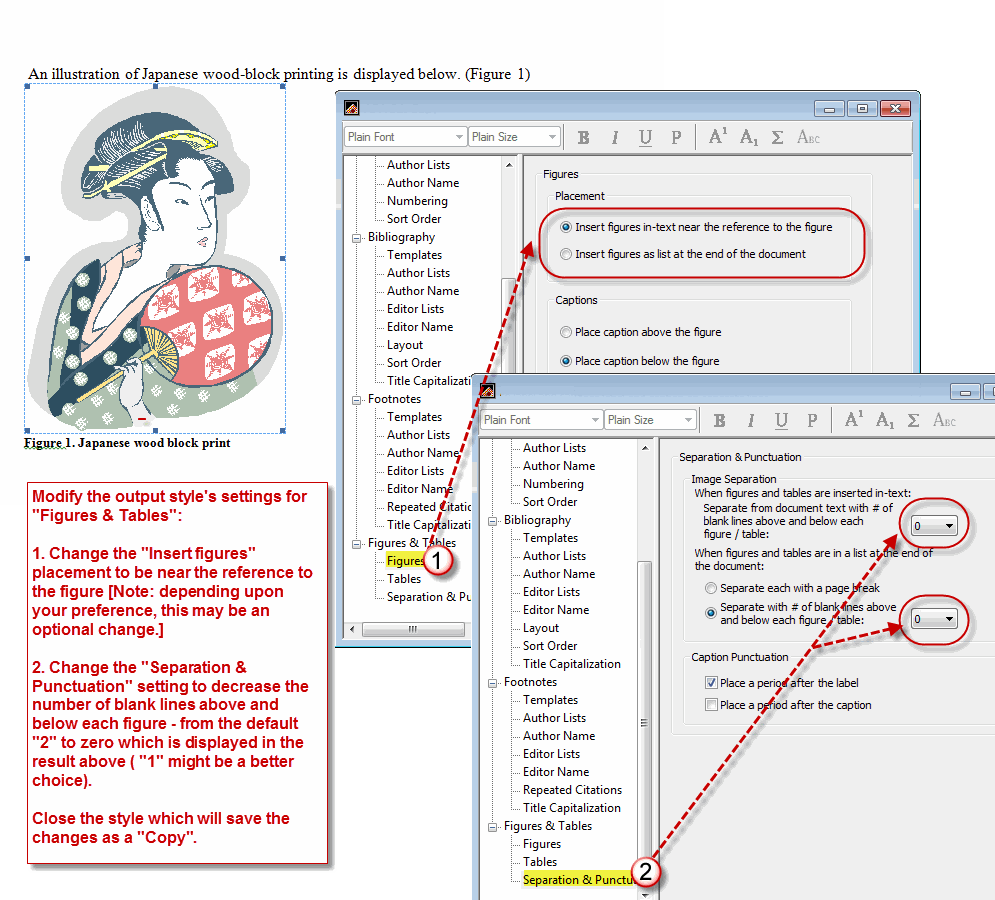
Placement and spacing of the figure can be controlled by changing settings in the EndNote output style’s “Figures & Tables” options
As shown in the attached image of the Japanese wood print, you can decrease the amount of “white space” between the (Figure 1) notation and the actual figure by adjusting either or both (depending upon your preferences) of the default settings for: 1) “Figures”, and 2) “Separation and Punctuation”. I suspect the latter which allows changing the number of blank lines above and below the figure is what you want to do. As shown in the wood block illustration, the number of blank lines was set to zero (0) which is probably too low - more likely “1” is the setting to use. Close the output style when done and note the changes will be saved as a “copy” so you’ll need to adjust both EndNote and MS Word to use the modified style copy instead of the original file.
Also note that when inserting the figure, your cursor should be on the same line as the referenced sentence - not placed on a new line.